Staring at a computer monitor for eight hours a day is a fundamental requirement for most modern office jobs. Unfortunately, corporate environments are rarely optimized for visual health, often featuring harsh overhead fluorescent lights and poorly calibrated displays. By the time the afternoon rolls around, many employees suffer from dry, burning eyes and declining cognitive focus.
While you cannot simply walk away from your desk when you have deadlines to meet, you have more control over your immediate visual environment than you might realize. Implementing targeted tips for reducing screen fatigue requires making minor, calculated adjustments to your workstation settings. This guide explores how to modify your display and local lighting to protect your eyes and maintain your energy throughout the entire workday.
The Importance of Visual Ergonomics
To fix the discomfort, we must first understand how our display environment causes it.
Implementing tips for reducing screen fatigue involves adjusting your digital display and physical workspace to minimize ocular stress. By optimizing contrast settings, improving font size readability, and balancing ambient lighting, employees can significantly reduce the muscular eye strain caused by prolonged office work.
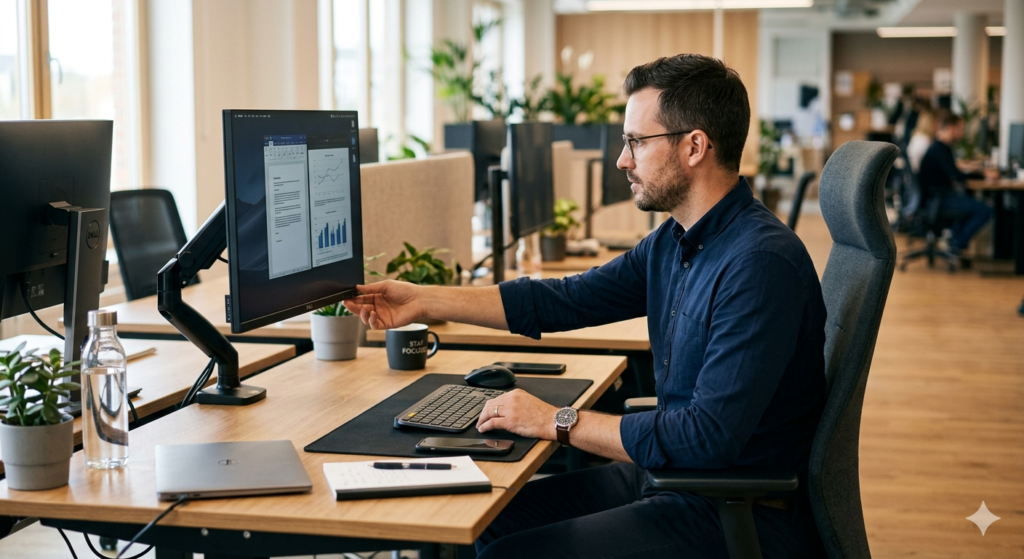
When your eyes constantly shift between a glaring monitor and a dimly lit cubicle, your pupils are forced to rapidly expand and contract. Over thousands of micro-adjustments, these ocular muscles become completely exhausted. Office fatigue is rarely caused by the screen alone; it is caused by the relationship between the screen and the surrounding environment.
Optimizing Contrast Settings and Ambient Lighting
The golden rule of screen ergonomics is that your monitor should never look like a glowing light source. Instead, it should blend seamlessly into your physical surroundings.
To achieve this, you must calibrate your contrast settings and brightness to match the room. Hold a piece of blank white printer paper next to your screen. If your monitor looks like a lamp compared to the paper, it is too bright. If it looks dull and gray, it is too dark. Adjust the display until the digital white background closely mimics the physical paper.
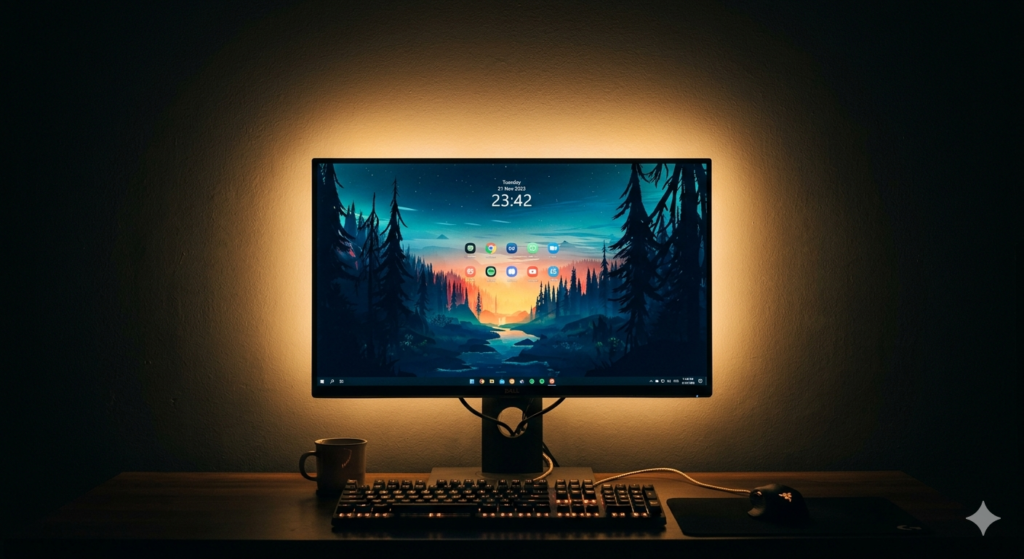
Furthermore, harsh contrast against a dark wall is incredibly fatiguing. If you work in a dimly lit office or home setup, consider installing bias lighting (LED strip behind monitor). This provides a soft, diffused glow against the wall behind your screen, reducing the stark contrast between the bright monitor and the dark background without casting a glare on the screen itself. Proper ambient lighting is an immediate relief for strained eyes.
The Dark Mode Pros Cons Debate
In recent years, software developers have widely introduced “Dark Mode” as a blanket solution to eye strain. However, the reality of white text on a black background is highly nuanced.
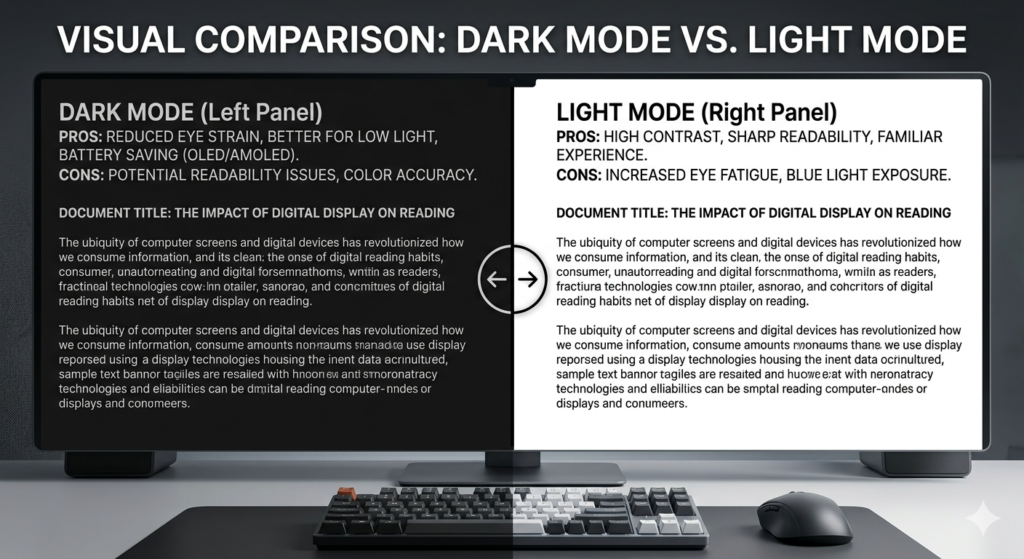
When evaluating the dark mode pros cons, you must consider your physical environment. In a dark room, dark mode is excellent because it reduces overall light emission, matching the ambient darkness. However, in a brightly lit corporate office, dark mode can actually increase glare by turning your screen into a highly reflective mirror.
Additionally, for the roughly 30% of the population with astigmatism, dark mode can cause a “haloing” effect. The eye’s lens struggles to focus on scattered light from white text on a black background, causing the letters to look blurry and washed out. If you find yourself squinting while using dark themes, switching back to a light theme with lowered brightness is highly recommended.
Improving Font Size Readability
One of the most common, yet easily fixable, causes of office eye strain is improper text scaling. When you squint to read tiny numbers on a spreadsheet, you instinctively lean forward, pulling your face closer to the screen.
This forward-leaning posture not only ruins your neck and back ergonomics but also forces your eyes to converge too closely. Improving font size readability instantly eliminates this physical strain. Do not just use the zoom function in your web browser; go into your computer’s system display settings and increase the global UI scaling to 125% or 150%.
By making the text naturally larger, you can sit back comfortably in your chair at a proper distance. If you want to understand exactly why this proximity matters, reviewing the mechanics of Computer Eye Strain will highlight the dangers of forcing your eyes into a constant, intense near-focus state.
Conclusion
Managing visual comfort in a corporate environment does not have to be a losing battle. By applying these practical tips for reducing screen fatigue, you can proactively protect your eyes from the harsh realities of digital office work. Balancing your contrast settings with proper ambient lighting, critically evaluating the dark mode pros cons for your specific vision, and prioritizing font size readability will dramatically reduce your ocular stress. A few minutes spent optimizing your workstation settings translates into hours of sustained, comfortable focus throughout your workday.
Frequently Asked Questions (FAQ)
What is the best lighting for a computer workstation?
The best ambient lighting is even and indirect. Avoid bright overhead fluorescent lights that shine directly onto your screen, and avoid placing your monitor directly in front of an unshaded window. Bias lighting behind the monitor is an excellent way to reduce contrast strain.
Is dark mode actually better for my eyes?
Not always. While dark mode reduces overall light emission (which is helpful in a dark room), it can cause text to blur or “halo” for individuals with astigmatism. In a brightly lit office, a light mode with appropriate brightness settings is often easier to read.
How does font size readability affect eye strain?
When text is too small, you naturally squint and lean closer to the monitor. This forward posture strains your neck, and the closer proximity forces the focusing muscles in your eyes to work much harder, leading to rapid visual fatigue and tension headaches.
How should I adjust my monitor’s contrast settings?
Your monitor’s brightness and contrast should be adjusted to match the ambient lighting of your room. A good test is to hold a blank piece of white printer paper next to your screen; the white background on your monitor should not look significantly brighter or darker than the paper.